How-to Guides
Trace cost to a team
Attribute every workload's cost to the right team, either through Kubernetes labels or the Assignment Workbench.
This guide attributes workload cost to teams. Tell Kubeadapt which Kubernetes label encodes team ownership, label your workloads, and the Teams view fills in. Assign workloads that can't be labelled, such as third-party charts and shared infrastructure, by hand in the Assignment Workbench.
This walks both paths. Pick the one that matches how your org already organizes Kubernetes.
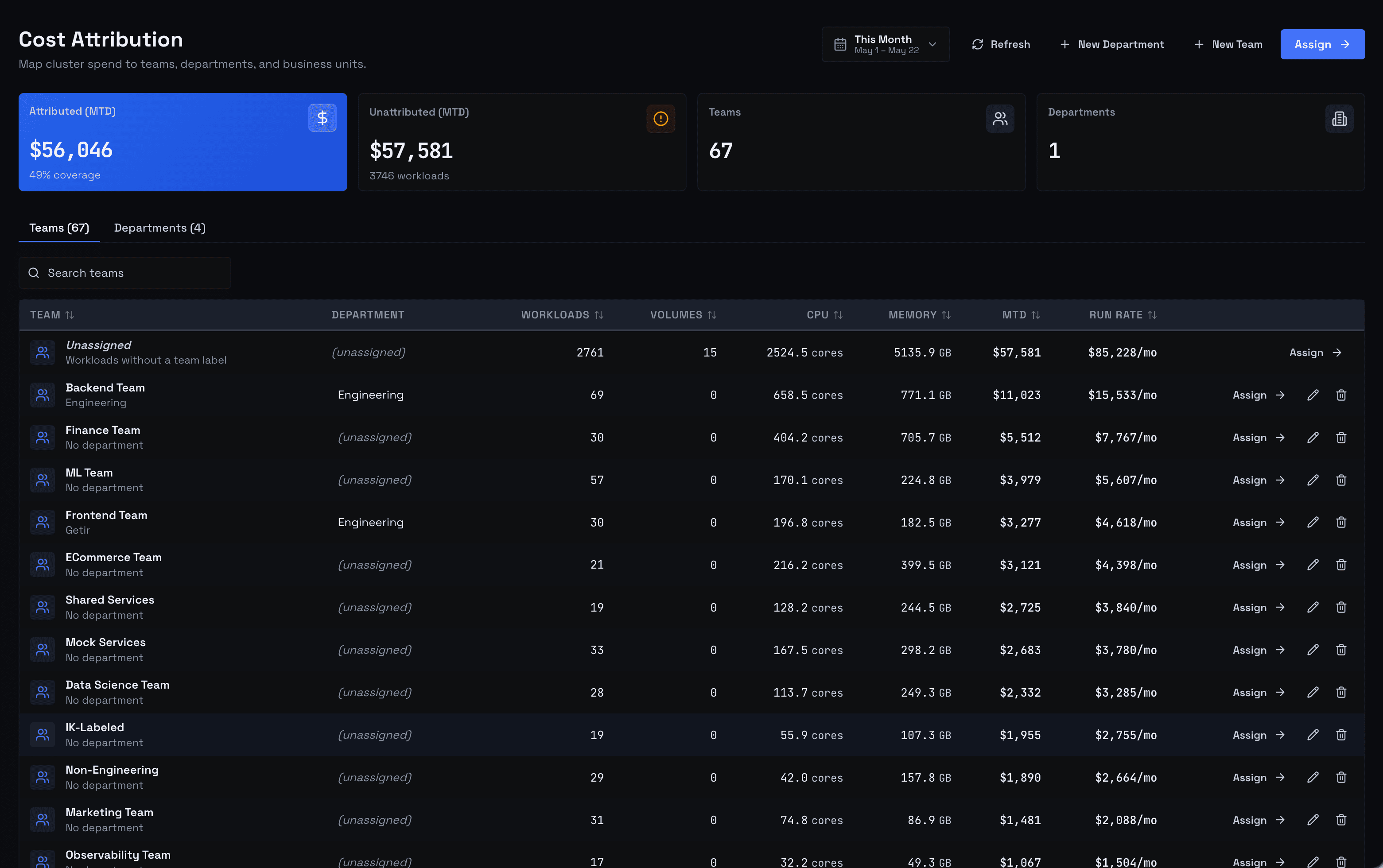 Cost Attribution Page - Teams Tab
1. Point Kubeadapt at the right label keys
Settings → Label Keys. The page exposes four label keys you can customize:
| Field | Default value | Used for |
|---|---|---|
| Team label | team | Maps a workload to a Team |
| Department label | kubeadapt-department | Maps a workload to a Department |
| Owner label | owner | Surfaces a contact in the UI |
| Environment label | environments | Splits prod/staging in views |
If your org already standardizes on a different key (app.kubernetes.io/part-of, cost-center, squad), type it here and save. Kubeadapt picks up the change on the next cluster update.
2. Label your workloads
Add the team label to the pod template of every workload you want attributed. For a Deployment:
1apiVersion: apps/v1
2kind: Deployment
3metadata:
4  name: checkout-api
5  namespace: payments
6spec:
7  template:
8    metadata:
9      labels:
10        team: payments-platform
11        owner: lia@example.com
12    spec:
13      containers:
14        - name: app
15          image: ghcr.io/example/checkout:v1.42.0
Apply with kubectl apply -f. Labels on the Deployment itself are ignored — Kubeadapt reads pod labels.
For Helm charts you don't own, set the labels through podLabels in values.yaml rather than editing the chart.
3. Verify in Cost Attribution → Teams
Open Cost Attribution → Teams. Within one snapshot (60 seconds), the team you labelled appears with the workload underneath it. Click into the team to see every workload, its current daily cost, and the trend over the last 30 days.
If a workload is missing, three things to check:
- The pod template carries the label, not just the Deployment metadata
- The label key matches the value saved in Settings → Label Keys
- Pods are running — workloads with zero pods today don't show up
Manual assignments always win over labels, so if you previously hand-assigned a workload, the label is ignored until you clear the manual assignment.
4. Hand-assign what can't be labelled
Some workloads can't take a team label cleanly — vendor Helm charts, kube-system add-ons, shared databases. Cost Attribution → Assignment Workbench is the manual path.
The workbench lists every workload in a paginated table (50 per page). Pick a workload, click Assign, choose a team. Cluster-level and namespace-level bulk assigns are available from the side panels for sweeping multiple workloads at once.
Need to split a shared workload across multiple teams? Use Split Cost from the row menu. You can split across up to 10 teams; the percentages must sum to 100.
Next steps
- Cost attribution: overview: the data model behind teams, departments, and assignments
- Assignment Workbench: bulk flows, split-cost rules, and manual-vs-label precedence