How-to Guides
Configure SAML SSO
Stand up SAML single sign-on with Okta, Entra ID, Google Workspace, or any SAML 2.0 IdP.
This guide connects Kubeadapt to your identity provider (Okta, Entra ID, Google Workspace or a custom SAML provider). The wizard has two steps: name the connection, then paste three values from your identity provider. The guide also covers metadata imports and IdP-initiated sign-in.
Plan for about ten minutes including the IdP side.
1. Pick a provider and name the connection
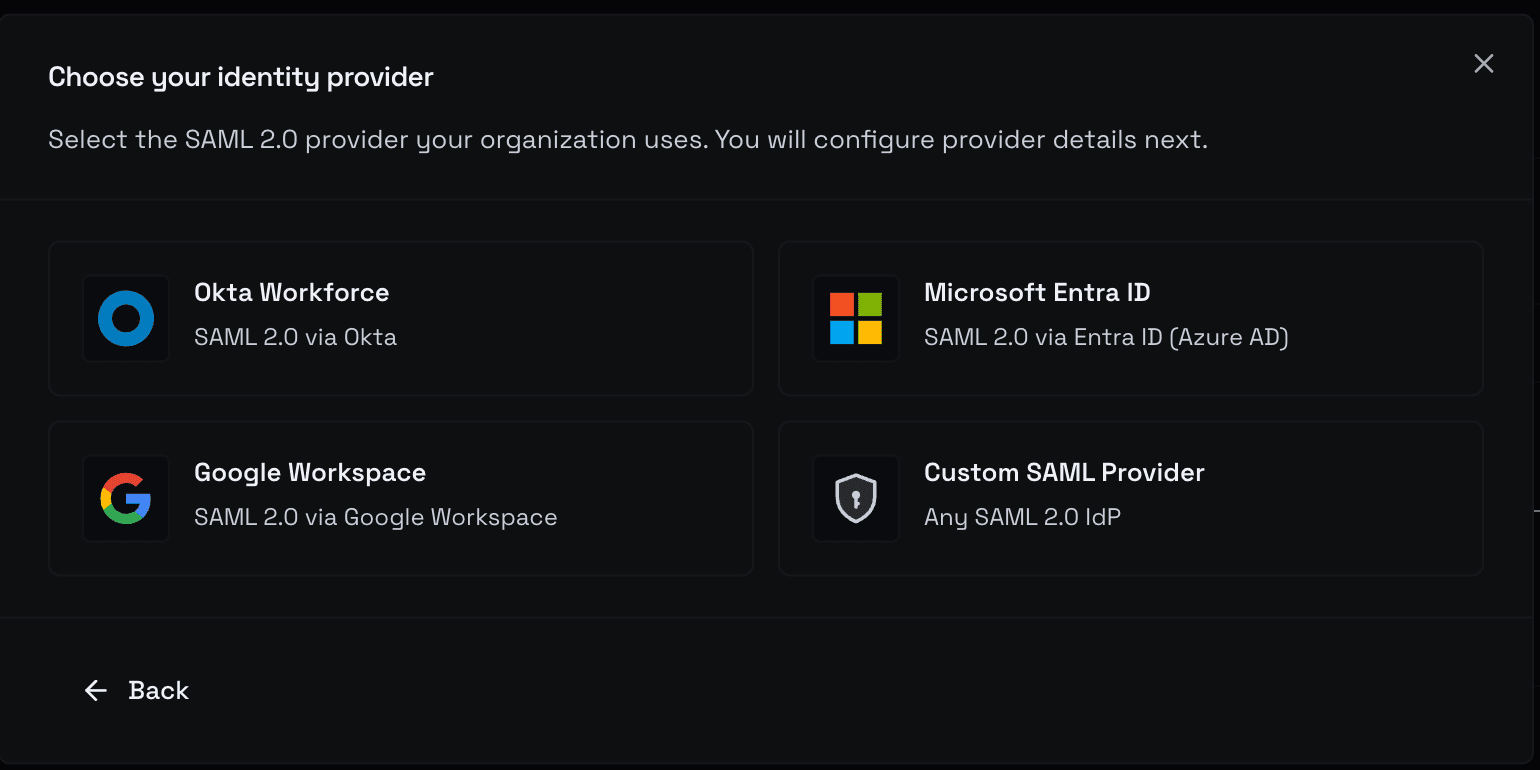 SSO tab with Add Connection opening the provider picker (Okta, Entra ID, Google Workspace, Custom SAML)
Settings → Access Management → SSO tab → Add Connection. Pick one of:
| Provider | Use when |
|---|---|
| Okta Workforce | Your org uses Okta for workforce identity |
| Microsoft Entra ID | Formerly Azure AD |
| Google Workspace | Google as identity provider |
| Custom SAML Provider | Any SAML 2.0-compliant IdP (OneLogin, JumpCloud, etc.) |
You land on Step 1 of 2. Enter:
- Connection name: internal label (e.g.
Okta — Production) - Email domain: the domain that gates this connection (e.g.
example.com). Users with email at this domain are routed to this IdP at sign-in.
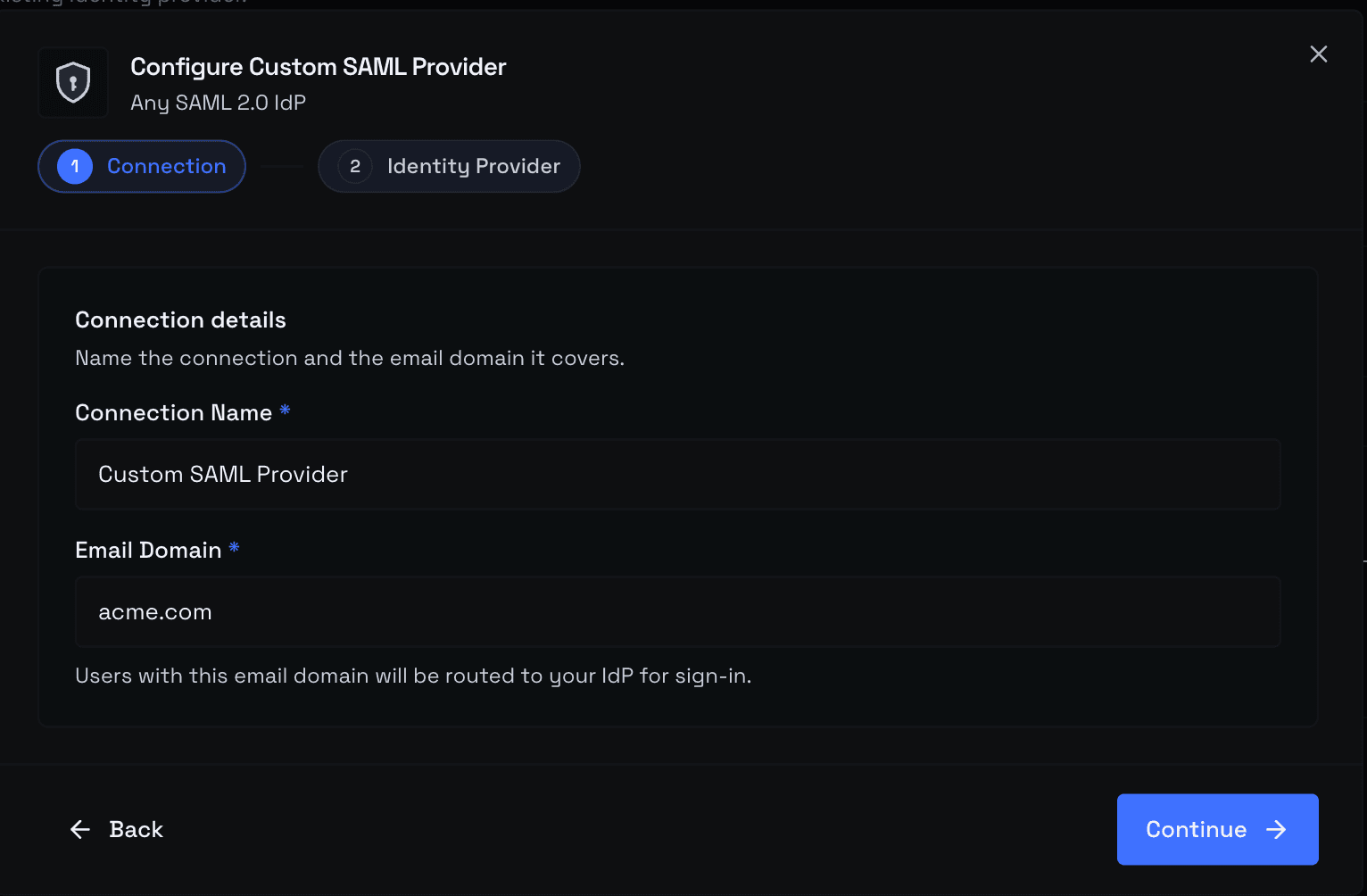 Step 1 of 2 — Connection name and Email domain fields, then the SP Entity ID and ACS URL ready to copy
Save and Kubeadapt shows you the Kubeadapt-side metadata: Entity ID and ACS URL. Copy both. You need them in your IdP.
2. Create the application on your IdP
The exact path differs per provider, but every one asks for the same two values from Kubeadapt:
- SP Entity ID (audience)
- ACS URL (assertion consumer service / reply URL)
Paste them in. Configure the SAML response to send these attributes — Kubeadapt expects exact attribute names:
| Kubeadapt field | SAML attribute name expected |
|---|---|
| user_id | user_id or NameID (subject) |
| email_address | email_address |
| first_name | first_name |
| last_name | last_name |
Most IdPs let you map these in the application's attribute statements; in Okta they're under Profile Editor → Attribute Statements, in Entra ID under Single sign-on → Attributes & Claims.
Save the IdP application and download its metadata XML.
3. Complete Step 2 of 2 in Kubeadapt
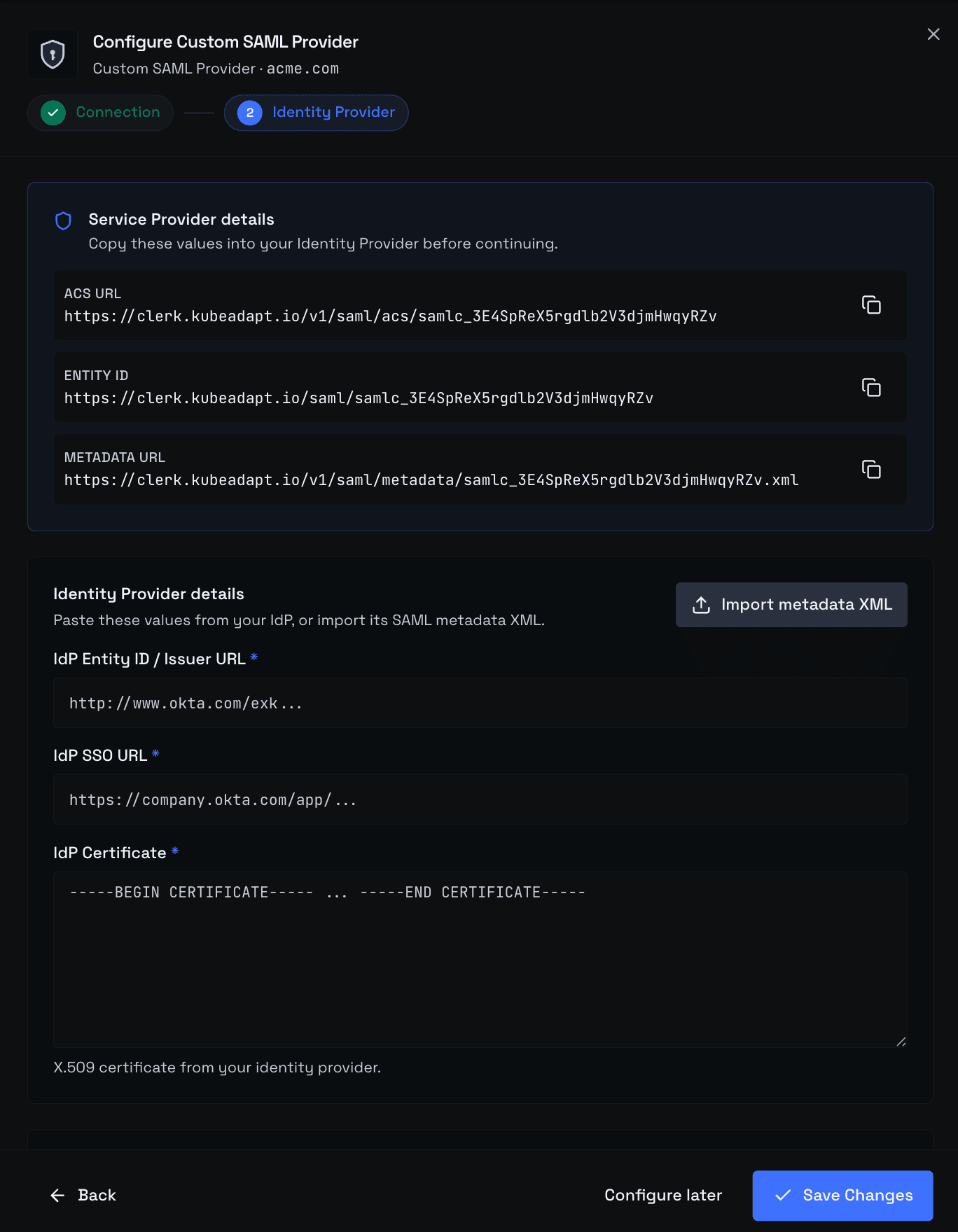 Step 2 of 2 — Upload metadata XML versus manual IdP Entity ID / SSO URL / certificate fields, plus subdomain and IdP-initiated toggles
Back in Kubeadapt, advance to Step 2 of 2. You have two paths:
- Upload metadata XML: pastes the IdP metadata you just downloaded and auto-fills the three fields below
- Fill manually: paste each value yourself
Either way, these three fields must be populated:
- IdP Entity ID / Issuer URL: the IdP's identifier for itself
- IdP SSO URL: where Kubeadapt sends the SAML AuthnRequest
- IdP certificate: the X.509 public certificate the IdP signs assertions with (PEM format, including the
-----BEGIN CERTIFICATE-----header)
Then the two toggles on this step:
| Toggle | What it does |
|---|---|
| Allow Subdomains | Permit users with email at any subdomain of the configured domain (e.g. eu.example.com) |
| Allow IdP-Initiated Login | Permit sign-in flows that start at your IdP's app launcher |
Save. The connection is live.
4. Test the round trip
Open an incognito window. Go to app.kubeadapt.io, click Sign in with SSO, enter an email at the configured domain. You should be redirected to your IdP, authenticate there, and land back in Kubeadapt signed in.
If sign-in fails, the message in the browser tells you which part broke:
Issuer mismatch: the IdP Entity ID in Kubeadapt doesn't match what the IdP is sending. Check Step 2 against the metadata XML.Invalid signature: the certificate you pasted doesn't match the one your IdP signs assertions with. Re-download metadata and re-import.Missing required attribute: email_address: your IdP app isn't sending the attribute under the exact name Kubeadapt expects. Fix the attribute mapping on the IdP side.
5. Tune the advanced toggles (optional)
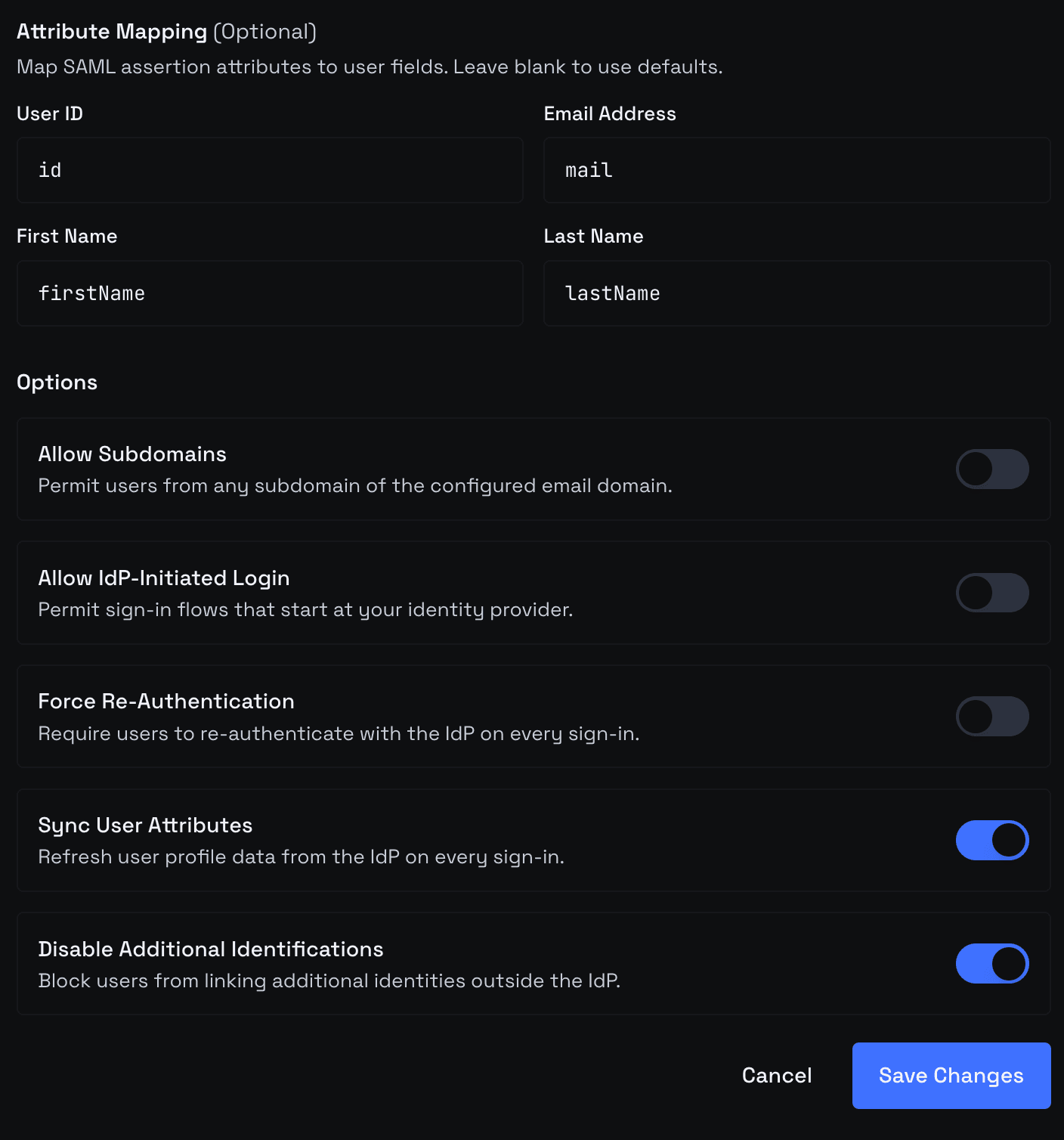 Advanced connection settings — Force Re-Authentication, Sync User Attributes, Disable Additional Identifications toggles
After the connection works, edit it to surface three more toggles for stricter security:
| Toggle | When to turn on |
|---|---|
| Force Re-Authentication | Compliance requires fresh IdP authentication on every sign-in |
| Sync User Attributes | You want first/last name updates to flow from the IdP on every sign-in |
| Disable Additional Identifications | Block linking other identities (e.g. Google) once SAML is in place |
Next steps
- Invite teammates: pair SSO with user groups for per-cluster scoping
- Limits and quotas: SSO is available on plans that include it; check before rolling out